How Food & Fit works, day by day

Download on the App Store

Start with the free journal. No account required. For iPhone with iOS 26 or later.

A day has one working screen

On your first day, log one meal and add one daily check-in. You can keep using manual protein and fiber logging, daily check-ins and local history for free. Photo and text AI estimates share an allowance of three sessions each local day.

The Journal shows one day at a time: what you ate, its nutrition, and how you felt. Move between days, use the week row to jump to nearby days, and go back to today. Every meal starts from the same meal bar.
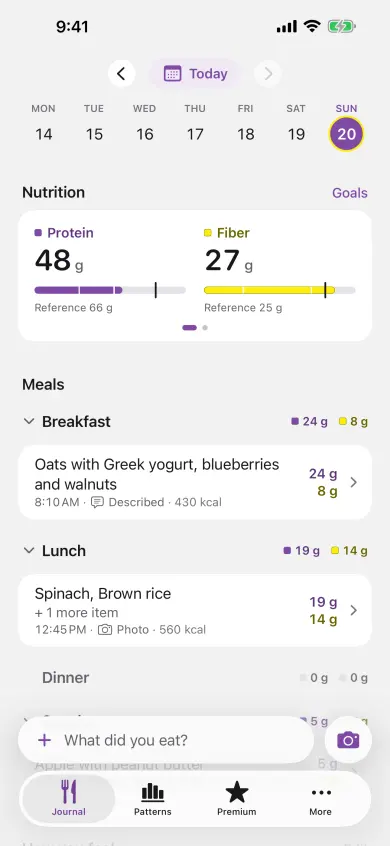
The Food & Fit Journal screen with day navigation, a week row, protein and fiber references, and meals grouped by time of day.
The Journal keeps a selected day in view: navigation, the week row, nutrition, meals and the daily check-in are all about that day.

Journal: food first, then the day around it

At the top, day navigation and the week row make it clear which day you are looking at. The nutrition card has two pages. Its first page gives protein and fiber equal space, each beside an editable general-adult reference. The second page shows calories, carbohydrates and fat.

Meals sit under Breakfast, Lunch, Dinner and Snacks. Food & Fit picks the group from the time of day, and you can change the saved label.

One meal bar, three ways to log

Use whichever is quickest for the meal in front of you. You can edit any saved meal.

Describe it

Write a short description of the meal and get back an editable nutrition estimate.

Photograph it

Add a photo of the meal. A few words with it, such as “half portion”, give the estimate more to work with.

Enter it manually

Type the name, amount, protein and fiber yourself. You can change them later.

Check the estimate, then save it

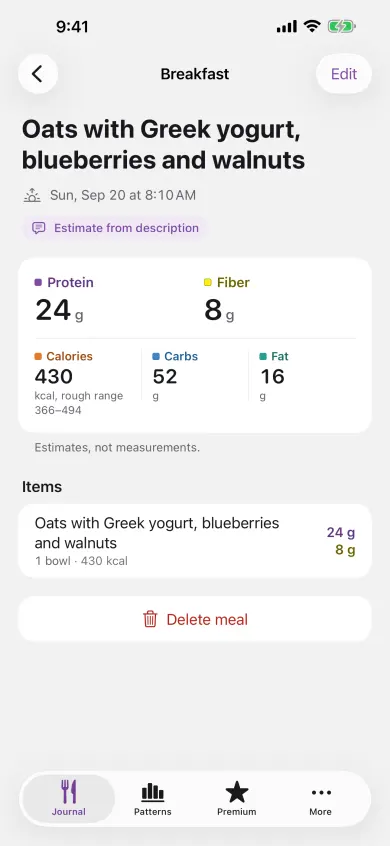
A text or photo estimate returns food items, quantities, calories, protein, fiber, carbohydrates and fat, with protein and fiber first. Review and change it before saving, or edit it later. Your correction is the value your journal keeps.

Free includes three AI estimate sessions per local day and unlimited manual logging of name, amount, protein and fiber. Premium gives you unlimited estimate sessions, adds calories, carbohydrates and fat to manual entry, and unlocks Appointment prep, for $12.99 monthly, $39.99 annually or $79.99 for lifetime access.

Both plans keep all your local history, check-ins and statistics.

An editable Food & Fit meal estimate showing food items and nutrition values before saving.
An estimate review shows individual food items and nutrients before you save it, with every value available to correct.
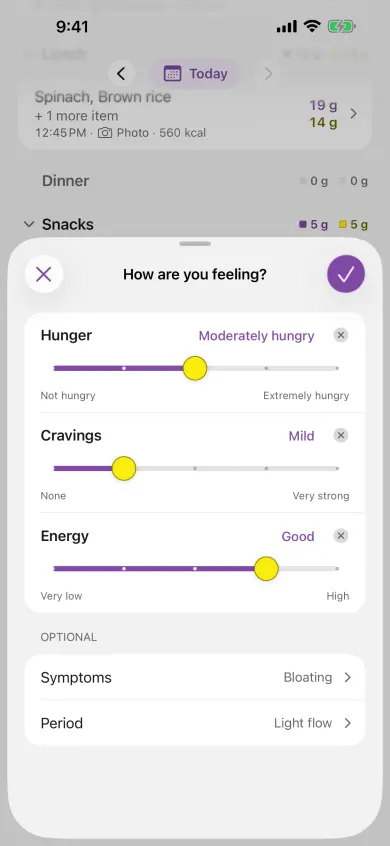
The Food & Fit daily check-in with hunger, cravings and energy ratings, plus optional symptoms and period context.
The daily check-in records hunger, cravings and energy first, with optional symptoms and period context when they add useful detail.

Check in once, in three taps

The Daily PCOS Check-In records hunger, cravings and energy. Add symptom tags, medicine tags (metformin, a GLP-1 medicine, hormonal birth control or another medicine) and period-start or flow context when they are relevant. You can skip any field. Medicine tags are context for your record and never enter a pattern’s statistics.

Food & Fit never fills in a blank entry, so comparisons use only the days you chose to record. A paired day combines a logged meal with the rating you selected.

You can look back at each day’s check-in next to that day’s meals.

Everything the check-in records.

Patterns: your week, then your questions

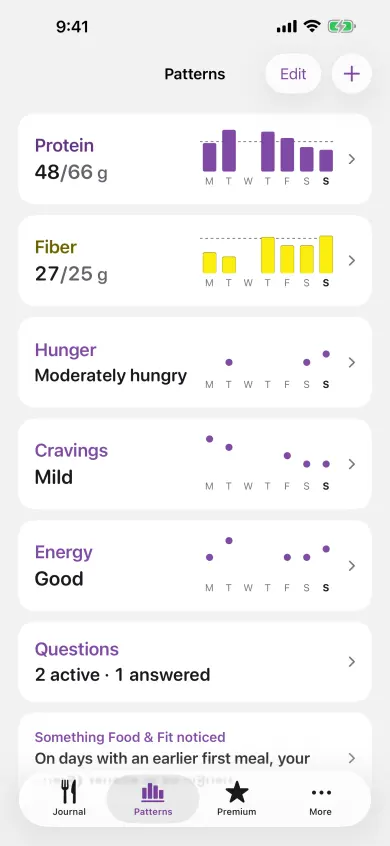
The Patterns tab starts with cards for the signals you choose. Each card shows today and this week, and longer ranges when you open it. From day 7 to day 28, Your first week sums up your meal and check-in days, the days protein and fiber reached their references, and your usual hunger, cravings and energy.

The Questions card is where you choose up to three neutral comparisons from a fixed menu: protein, fiber, carbohydrates, fat, first-meal time or last-meal time against hunger, cravings or energy. Each question shows its progress as your paired days build.

When a question qualifies, Food & Fit shows every day behind it and the context around it. The analysis runs on your iPhone.

How a question gets an answer.

The Food & Fit Patterns tab with signal cards and a Questions card for active and answered comparisons.
The Patterns tab separates descriptive signal cards from the Questions card, where a comparison earns an answer only after enough paired days.

Weight, only if you turn it on

Weight is off until you turn on Track weight in More › Personal details. With it on, log a weight for the day or import daily weights from Apple Health, and set a weight reference of your own if you want one. The weight card shows your latest weight and a plain trend, with rises and falls in the same colour. Turn it off and weight disappears everywhere while your entries stay.

After at least ten weekly pairs, the Weight page can show whether weeks with more protein or fiber went with a lower or higher week-to-week weight change. It is an association in your own records, never a cause or a two-week-test result. How weekly weight patterns qualify.

Food & Fit sets no weight-loss plan, rate or date. Weight stays out of widgets, notifications and shared images. A calorie reference is optional too: enter one yourself in Daily references, or leave it unset.

Read more about weight tracking.

Widgets, reminders and other extras

All of these are optional.

Widgets

Home Screen and Lock Screen widgets show a small current-day summary and open Log Meal or Check In. Turn on privacy mode to hide the numbers.

One reminder

Set one local check-in reminder and pick its time and weekdays.

Apple Health

Choose Apple Health access by category, import daily aggregates or daily weights to your iPhone, and write confirmed Food & Fit nutrition back when you want to.

Appointment prep

With Premium, turn the last 4 weeks, 3 months or 6 months of your records into a one-page PDF for a clinician visit. It reports what you recorded without interpreting it, is made on your iPhone and goes only where you send it. What goes on the page.

Your first four weeks

  1. Day one. Your Journal and Patterns cards begin with today’s numbers and this week’s record. From day seven, Your first week sums up how the week went.
  2. Three weeks of paired days. Your question reaches the point where evaluation can start.
  3. Four to eight weeks. A question can get an answer once it qualifies.
  4. After that. A qualifying pattern can open a planned two-week test.

Start with today’s meals

Food & Fit is a free iPhone journal for women with PCOS. Start with today’s meal and today’s check-in.